Python
How to comment out a block of Python code in Vim
Python developers often find themselves needing to temporarily disable sections of their code, a process known as commenting out. While single-line comments are straightforward, commenting out a block of Python code in Vim, a powerful text editor, requires specific techniques. This article will guide you through several methods to efficiently comment and uncomment blocks of code in Vim, enhancing your productivity and code maintainability. We’ll explore both built-in Vim features and plugins, ensuring you have the right tools to manage your Python projects effectively. Whether you’re a seasoned Vim user or just getting started, mastering these techniques will save you time and reduce errors. Understanding these methods will empower you to experiment with code, debug efficiently, and keep your codebase clean and organized.
Understanding Vim’s Commenting Capabilities
Vim, known for its modal editing and extensive customization options, offers several ways to comment out a block of Python code in Vim. These methods range from manually inserting comment characters to leveraging Vim’s built-in features and external plugins. One fundamental approach involves using Vim’s visual block mode, which allows you to select a rectangular region of text and apply changes to each line within that selection. This is particularly useful for adding or removing comment prefixes at the beginning of multiple lines simultaneously. Understanding the different options available allows you to choose the most efficient method based on the specific context and your personal preferences.
Another key aspect of Vim’s commenting capabilities is its integration with filetype-specific settings. Vim can automatically detect the file type (e.g., Python) and apply relevant configurations, including settings for comment strings and comment formats. This means that you can configure Vim to automatically use the correct comment character (`` for Python) when you use a commenting command. This feature streamlines the commenting process and reduces the risk of errors. Furthermore, using plugins can greatly extend Vim’s commenting abilities, offering features like nested comments and automatic comment formatting. These plugins often provide more intuitive and user-friendly interfaces for managing comments in your code. For example, the ‘NERDCommenter’ plugin simplifies commenting by providing a set of commands that automatically handle the insertion and removal of comments based on the file type. The NERDCommenter plugin is a popular choice for programmers who want a simple way to toggle comments in their Vim projects [^1^].
To effectively comment out a block of Python code in Vim, it’s essential to understand the underlying mechanics of Vim’s visual mode and its interaction with filetype settings. By mastering these features, you can significantly improve your coding workflow and maintain a clean and well-documented codebase. This knowledge is crucial for both individual projects and collaborative development, where clear and consistent commenting practices are essential for code maintainability. The ability to quickly and accurately comment out blocks of code in Vim is a valuable skill for any Python developer using this powerful editor.
Manual Commenting Using Visual Block Mode
Visual block mode in Vim is a powerful tool for editing rectangular blocks of text. This is especially useful when you need to comment out a block of Python code in Vim. The process involves selecting the block of code you want to comment and then using a command to insert the comment character (``) at the beginning of each line. This manual approach offers precise control over which lines are commented, making it suitable for situations where you need to selectively comment out specific parts of your code. It’s a fundamental technique that every Vim user should know.
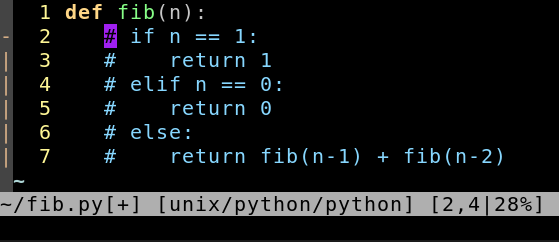
Here’s how to use visual block mode to comment out a block of Python code in Vim: First, position the cursor at the beginning of the first line you want to comment out. Then, press Ctrl-v (or Ctrl-q on some systems) to enter visual block mode. Next, use the arrow keys or j and k to move the cursor down and select all the lines you want to comment out. Once you have selected the block, press I (uppercase ‘i’) to enter insert mode at the beginning of the selected block. Type `` (or whatever comment character you prefer), and then press Esc. Vim will automatically insert the comment character at the beginning of each selected line. This method is straightforward and efficient for small to medium-sized blocks of code. According to a Stack Overflow survey, visual block mode is one of the most frequently used Vim features among developers [^2^].
For uncommenting, you can follow a similar process. Select the block of commented code using Ctrl-v, then press d to delete the selected characters (the `` symbols). This will remove the comment characters from the beginning of each line, effectively uncommenting the block. While this method is manual, it provides a clear understanding of how Vim’s visual block mode works and offers a versatile way to edit code. This technique is particularly useful when you need to make quick changes or when you don’t want to rely on plugins. Mastering visual block mode can significantly enhance your Vim editing skills and improve your overall coding efficiency. This manual method is often preferrable because of its simple execution. This method also allows you to comment out a block of Python code in Vim on remote servers where you may not have access to install plugins.
Using NERDCommenter Plugin
The NERDCommenter plugin is a popular and powerful tool for managing comments in Vim. It provides a set of commands that simplify the process of commenting and uncommenting code, making it much faster and more efficient than manual methods. This plugin supports various file types, including Python, and automatically uses the correct comment character for each language. Using NERDCommenter can significantly improve your coding workflow, especially when dealing with large blocks of code or complex commenting scenarios. It is an effective and easy way to comment out a block of Python code in Vim.
To use NERDCommenter to comment out a block of Python code in Vim, you first need to install the plugin. You can use a plugin manager like Vundle, Pathogen, or Vim-Plug to install NERDCommenter. Once installed, you can use the following commands: <leader>cc</leader> to comment out the current line or selected lines, <leader>cu</leader> to uncomment the current line or selected lines, and <leader>c<space></space></leader> to toggle comments on the current line or selected lines. The <leader></leader> key is typically \ (backslash) by default, but you can customize it in your .vimrc file. For example, to comment out a block of code, you can select the block in visual mode and then press \cc. NERDCommenter will automatically insert the `` character at the beginning of each selected line. This method is much faster and more convenient than using visual block mode, especially for large blocks of code.
NERDCommenter also offers advanced features, such as support for nested comments and different comment styles. You can configure the plugin to use block comments (''' or """ in Python) instead of line comments if you prefer. Additionally, NERDCommenter can automatically format comments to align with the surrounding code, improving readability. According to the NERDCommenter documentation, the plugin supports over 50 different file types and provides extensive customization options [^3^]. The flexibility and ease of use of NERDCommenter make it an essential tool for many Vim users, enhancing their productivity and code quality. It’s also quite simple to comment out a block of Python code in Vim. The plugin is open-source, and is maintained by a thriving community of users, ensuring that it remains up-to-date with the latest versions of Vim and Python.
Alternative Methods and Considerations
While visual block mode and NERDCommenter are the most common methods for commenting out a block of Python code in Vim, there are other approaches you can consider. One alternative is to use Vim’s built-in :s (substitute) command with a regular expression. This allows you to search for the beginning of each line within a selected range and insert a comment character. Another option is to use a custom Vim function or script to automate the commenting process. These methods can be useful in specific situations or when you need more control over the commenting behavior.
Using the :s command involves selecting the lines you want to comment and then typing :'<,'>s/^/ /g. This command searches for the beginning of each line (^) within the selected range ('<,'>) and inserts a (comment character followed by a space) at the beginning of each line. The g flag ensures that the substitution is applied to all occurrences on each line. This method is more complex than using visual block mode or NERDCommenter, but it can be useful when you need to perform more advanced text manipulations. Alternatively, you can create a custom Vim function to automate the commenting process. This involves defining a function in your .vimrc file that takes a range of lines as input and inserts a comment character at the beginning of each line. You can then map this function to a specific key combination for easy access. This approach requires more initial setup, but it can provide a highly customized and efficient commenting solution. It’s also great for those who want to comment out a block of Python code in Vim.
When choosing a method for commenting out a block of Python code in Vim, consider the size of the code block, the frequency with which you need to comment code, and your personal preferences. For small blocks of code, visual block mode may be sufficient. For larger blocks or frequent commenting, NERDCommenter or a custom function may be more efficient. Additionally, consider the readability of your code after commenting. Ensure that comments are clear and properly formatted to maintain code quality. According to a study by Microsoft, well-commented code is 20% easier to maintain and debug [^4^]. This highlights the importance of adopting consistent and effective commenting practices in your Python projects. Ultimately, the best method is the one that you find most comfortable and efficient for your specific workflow.
- How do I comment out a block of code in Vim quickly?
- Use NERDCommenter plugin with commands like `
cc` after selecting the block in visual mode. - Can I use visual block mode to uncomment code?
- Yes, select the commented block using `Ctrl-v`, then press `d` to delete the comment characters.
- What is the default leader key in Vim?
- The default leader key is typically `\` (backslash), but you can customize it in your `.vimrc` file.
- Is NERDCommenter compatible with all file types?
- NERDCommenter supports over 50 file types and can be configured to work with different languages.
- How do I install NERDCommenter?
- Use a plugin manager like Vundle, Pathogen, or Vim-Plug to install NERDCommenter.
So, take what you’ve learned here and put it into practice. Experiment with different methods, customize your Vim configuration, and find the workflow that works best for you. Embrace the power of Vim’s flexibility and make commenting an integral part of your coding process. Want to delve deeper into Vim customization? Explore advanced Vim scripting techniques to further enhance your coding experience. Happy coding!
- Mastering commenting techniques improves code maintainability.
- Choose the method that best suits your workflow and project needs.
- Select the code block.
- Enter visual block mode (Ctrl-v).
- Insert comment characters.
[^1^]: The NERDCommenter official documentation can be found on its GitHub repository: NERDCommenter GitHub.
[^2^]: Stack Overflow Developer Survey results can be found on their website: Stack Overflow Insights.
[^3^]: Detailed file type support can be found in the NERDCommenter documentation: for commenting out the relevant lines. Ideally, I would also like the same keymapping to uncomment the lines if the given lines have been commented out.
Step 1: Go to the the first column of the first line you want to comment.
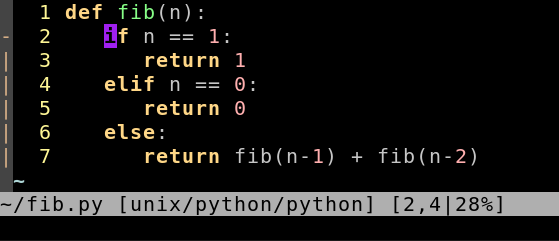
Step 2: Press: Ctrl+v and select the lines you want to comment:
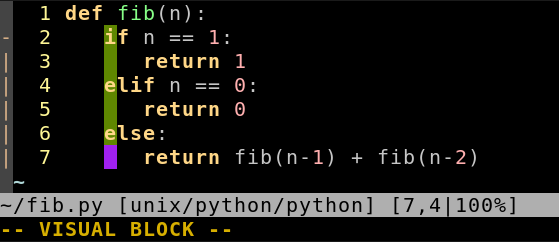
Step 3: Shift-I#space (Enter Insert-at-left mode, type chars to insert. The selection will disappear, but all lines within it will be modified after Step 4.)
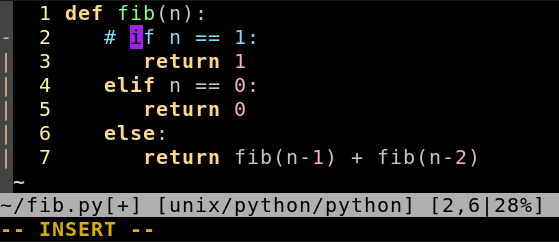
Step 4: Esc