Programming
How to get chosen class images from Imagenet
Navigating the vast ocean of data that is ImageNet can feel overwhelming, especially when your goal is to extract images of specific classes. This massive dataset, a cornerstone of computer vision research, contains millions of labeled images spanning thousands of object categories. Whether you’re training a machine learning model, conducting image analysis, or simply seeking visual resources, knowing how to efficiently retrieve images of chosen classes is crucial. This guide will provide a clear roadmap for accessing and utilizing the desired subsets of ImageNet, from understanding the dataset’s structure to employing practical tools and techniques.
Understanding the ImageNet Structure
Before diving into image extraction, it’s essential to grasp ImageNet’s hierarchical structure. The dataset is organized using WordNet, a lexical database that groups nouns into sets of synonyms called “synsets.” Each synset represents a specific concept or object category, and within ImageNet, each synset typically corresponds to a class. Understanding this hierarchical organization, from broad categories down to specific object classes, is key to effectively querying and retrieving the images you need.
ImageNet uses a unique identifier called a WordNet ID (WNID) for each synset/class. This WNID is crucial for precisely targeting the desired images. For example, the WNID “n01440764” corresponds to the “tench” fish. Knowing the WNID of your target class is the first step in efficient image retrieval. You can find these WNIDs through the ImageNet website or other online resources.
Furthermore, ImageNet provides various levels of access, including downloadable archives and APIs. Choosing the right access method depends on your specific needs and resources. Downloading the entire dataset can be resource-intensive, while using the API might be more suitable for targeted image retrieval.
Utilizing ImageNet APIs
Leveraging ImageNet APIs is often the most efficient way to get chosen class images. Several APIs offer access to the dataset, allowing you to query by WNID and retrieve relevant image URLs. These APIs can significantly streamline the process, especially when dealing with large-scale image retrieval or specific class selections.
For instance, the official ImageNet API provides methods for retrieving image URLs based on WNIDs. This allows you to directly access images for specific classes without downloading the entire dataset. Other third-party APIs and libraries also exist, offering various functionalities and levels of access to ImageNet.
When using APIs, pay attention to rate limits and usage policies. Some APIs might have restrictions on the number of requests you can make within a given timeframe. Familiarize yourself with these limitations to avoid disruptions and ensure smooth image retrieval.
Downloading ImageNet Subsets
While APIs offer convenient access, downloading specific subsets of ImageNet can be beneficial for offline use and larger-scale projects. This approach requires identifying the desired classes and their corresponding WNIDs, then using command-line tools or scripts to download the associated image files.
Several tools and scripts are available to facilitate this process. For instance, you can use the official ImageNet download tools or community-developed scripts to automate the download of specific class folders based on WNIDs. This provides greater control over the data and eliminates dependency on API availability.
However, be prepared for significant storage requirements when downloading subsets. ImageNet is massive, and even subsets can consume substantial disk space. Plan your storage accordingly and consider compression techniques to manage the data effectively.
Working with Downloaded Images
Once you have downloaded your chosen class images, organizing and managing them is crucial for efficient use. Creating a well-structured directory system based on WNIDs or class names can simplify later access and processing. Using descriptive filenames and metadata can further enhance organization and searchability.
Consider using image management tools or libraries to streamline this process. Python libraries like Pillow and OpenCV provide functionalities for image manipulation, conversion, and metadata handling. These tools can automate tasks such as resizing, cropping, and format conversion, ensuring consistency and optimizing your image data for downstream applications.
Finally, explore data augmentation techniques to enhance the variability of your image dataset. Techniques like rotation, flipping, and color adjustments can artificially increase the size of your dataset, improving the robustness and generalization capabilities of machine learning models trained on these images. This is especially beneficial when working with smaller subsets of ImageNet.
- Key Point 1: Always double-check the WNID for accuracy.
- Key Point 2: Respect API rate limits and usage policies.
- Step 1: Identify the WNID of the desired class.
- Step 2: Choose an appropriate access method (API or download).
- Step 3: Retrieve the images and organize them effectively.
For a deeper dive into the intricacies of ImageNet and its applications in machine learning, refer to this comprehensive resource.
Featured Snippet Optimized Paragraph: To efficiently retrieve images from ImageNet, start by identifying the WordNet ID (WNID) of the target class. Use this WNID with the ImageNet API or download tools to access the relevant images. Remember to organize the downloaded images for easier management and consider using data augmentation techniques to enhance dataset variability.
Learn MoreExternal Resources:
[Infographic Placeholder]
Frequently Asked Questions (FAQ)
Q: How do I find the WNID for a specific class?
A: You can find WNIDs on the ImageNet website by searching for the desired class or using online WordNet browsers.
Successfully retrieving and utilizing ImageNet’s vast resources hinges on understanding its structure and employing the right tools and techniques. By following the strategies outlined in this guide, you can efficiently acquire images of chosen classes, empowering your research, development, or creative endeavors. Explore the available resources, experiment with different methods, and unlock the potential of this powerful image dataset. Start building your image collection today, and harness the power of visual data for your next project. Consider exploring related topics like image classification, object detection, and transfer learning to further enhance your understanding and application of ImageNet.
Question & Answer :
Background
I have been playing around with Deep Dream and Inceptionism, using the Caffe framework to visualize layers of GoogLeNet, an architecture built for the Imagenet project, a large visual database designed for use in visual object recognition.
You can find Imagenet here: Imagenet 1000 Classes.
To probe into the architecture and generate ‘dreams’, I am using three notebooks:
- https://github.com/google/deepdream/blob/master/dream.ipynb
- https://github.com/kylemcdonald/deepdream/blob/master/dream.ipynb
- https://github.com/auduno/deepdraw/blob/master/deepdraw.ipynb
The basic idea here is to extract some features from each channel in a specified layer from the model or a ‘guide’ image.
Then we input an image we wish to modify into the model and extract the features in the same layer specified (for each octave), enhancing the best matching features, i.e., the largest dot product of the two feature vectors.
So far I’ve managed to modify input images and control dreams using the following approaches:
- (a) applying layers as
'end'objectives for the input image optimization. (see Feature Visualization)- (b) using a second image to guide de optimization objective on the input image.
- (c) visualize
Googlenetmodel classes generated from noise.
However, the effect I want to achieve sits in-between these techniques, of which I haven’t found any documentation, paper, or code.
Desired result (not part of the question to be answered)
To have one single class or unit belonging to a given
'end'layer (a) guide the optimization objective (b) and have this class visualized (c) on the input image:
An example where class = 'face' and input_image = 'clouds.jpg':
 please note: the image above was generated using a model for face recognition, which was not trained on the
 Imagenet dataset. For demonstration purposes only.
Working code
Approach (a)
from cStringIO import StringIO import numpy as np import scipy.ndimage as nd import PIL.Image from IPython.display import clear_output, Image, display from google.protobuf import text_format import matplotlib as plt import caffe model_name = 'GoogLeNet' model_path = 'models/dream/bvlc_googlenet/' # substitute your path here net_fn = model_path + 'deploy.prototxt' param_fn = model_path + 'bvlc_googlenet.caffemodel' model = caffe.io.caffe_pb2.NetParameter() text_format.Merge(open(net_fn).read(), model) model.force_backward = True open('models/dream/bvlc_googlenet/tmp.prototxt', 'w').write(str(model)) net = caffe.Classifier('models/dream/bvlc_googlenet/tmp.prototxt', param_fn, mean = np.float32([104.0, 116.0, 122.0]), # ImageNet mean, training set dependent channel_swap = (2,1,0)) # the reference model has channels in BGR order instead of RGB def showarray(a, fmt='jpeg'): a = np.uint8(np.clip(a, 0, 255)) f = StringIO() PIL.Image.fromarray(a).save(f, fmt) display(Image(data=f.getvalue())) # a couple of utility functions for converting to and from Caffe's input image layout def preprocess(net, img): return np.float32(np.rollaxis(img, 2)[::-1]) - net.transformer.mean['data'] def deprocess(net, img): return np.dstack((img + net.transformer.mean['data'])[::-1]) def objective_L2(dst): dst.diff[:] = dst.data def make_step(net, step_size=1.5, end='inception_4c/output', jitter=32, clip=True, objective=objective_L2): '''Basic gradient ascent step.''' src = net.blobs['data'] # input image is stored in Net's 'data' blob dst = net.blobs[end] ox, oy = np.random.randint(-jitter, jitter+1, 2) src.data[0] = np.roll(np.roll(src.data[0], ox, -1), oy, -2) # apply jitter shift net.forward(end=end) objective(dst) # specify the optimization objective net.backward(start=end) g = src.diff[0] # apply normalized ascent step to the input image src.data[:] += step_size/np.abs(g).mean() * g src.data[0] = np.roll(np.roll(src.data[0], -ox, -1), -oy, -2) # unshift image if clip: bias = net.transformer.mean['data'] src.data[:] = np.clip(src.data, -bias, 255-bias) def deepdream(net, base_img, iter_n=20, octave_n=4, octave_scale=1.4, end='inception_4c/output', clip=True, **step_params): # prepare base images for all octaves octaves = [preprocess(net, base_img)] for i in xrange(octave_n-1): octaves.append(nd.zoom(octaves[-1], (1, 1.0/octave_scale,1.0/octave_scale), order=1)) src = net.blobs['data'] detail = np.zeros_like(octaves[-1]) # allocate image for network-produced details for octave, octave_base in enumerate(octaves[::-1]): h, w = octave_base.shape[-2:] if octave > 0: # upscale details from the previous octave h1, w1 = detail.shape[-2:] detail = nd.zoom(detail, (1, 1.0*h/h1,1.0*w/w1), order=1) src.reshape(1,3,h,w) # resize the network's input image size src.data[0] = octave_base+detail for i in xrange(iter_n): make_step(net, end=end, clip=clip, **step_params) # visualization vis = deprocess(net, src.data[0]) if not clip: # adjust image contrast if clipping is disabled vis = vis*(255.0/np.percentile(vis, 99.98)) showarray(vis) print octave, i, end, vis.shape clear_output(wait=True) # extract details produced on the current octave detail = src.data[0]-octave_base # returning the resulting image return deprocess(net, src.data[0])
I run the code above with:
end = 'inception_4c/output' img = np.float32(PIL.Image.open('clouds.jpg')) _=deepdream(net, img)
Approach (b)
""" Use one single image to guide the optimization process. This affects the style of generated images without using a different training set. """ def dream_control_by_image(optimization_objective, end): # this image will shape input img guide = np.float32(PIL.Image.open(optimization_objective)) showarray(guide) h, w = guide.shape[:2] src, dst = net.blobs['data'], net.blobs[end] src.reshape(1,3,h,w) src.data[0] = preprocess(net, guide) net.forward(end=end) guide_features = dst.data[0].copy() def objective_guide(dst): x = dst.data[0].copy() y = guide_features ch = x.shape[0] x = x.reshape(ch,-1) y = y.reshape(ch,-1) A = x.T.dot(y) # compute the matrix of dot-products with guide features dst.diff[0].reshape(ch,-1)[:] = y[:,A.argmax(1)] # select ones that match best _=deepdream(net, img, end=end, objective=objective_guide)
and I run the code above with:
end = 'inception_4c/output' # image to be modified img = np.float32(PIL.Image.open('img/clouds.jpg')) guide_image = 'img/guide.jpg' dream_control_by_image(guide_image, end)
Question
Now the failed approach how I tried to access individual classes, hot encoding the matrix of classes and focusing on one (so far to no avail):
def objective_class(dst, class=50): # according to imagenet classes #50: 'American alligator, Alligator mississipiensis', one_hot = np.zeros_like(dst.data) one_hot.flat[class] = 1. dst.diff[:] = one_hot.flat[class]
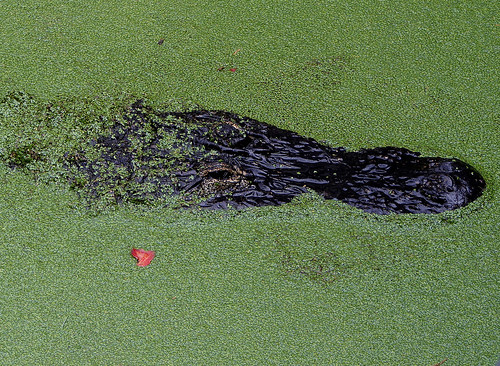
To make this clear: the question is not about the dream code, which is the interesting background and which is already working code, but it is about this last paragraph’s question only: Could someone please guide me on how to get images of a chosen class (take class #50: 'American alligator, Alligator mississipiensis') from ImageNet (so that I can use them as input - together with the cloud image - to create a dream image)?
The question is how to get images of the chosen class #50: 'American alligator, Alligator mississipiensis' from ImageNet.
- Go to https://www.image-net.org/.
- Go to Download.
202303: This guide is outdated!
The website changed, you can no longer download like in the following steps. It now looks like this:

The most highly-used subset of ImageNet is the ImageNet Large Scale Visual Recognition Challenge (ILSVRC) 2012-2017 image classification and localization dataset. This dataset spans 1000 object classes and contains 1,281,167 training images, 50,000 validation images and 100,000 test images. This subset is available on Kaggle.
For access to the full ImageNet dataset and other commonly used subsets, please login or request access. In doing so, you will need to agree to our terms of access.
The following steps are outdated, the website changed:
- Follow the instructions for “Download Image URLs”:

How to download the URLs of a synset from your Brower?
1. Type a query in the Search box and click "Search" button


The alligator is not shown. ImageNet is under maintenance. Only ILSVRC synsets are included in the search results. No problem, we are fine with the similar animal “alligator lizard”, since this search is about getting to the right branch of the WordNet treemap. I do not know whether you will get the direct ImageNet images here even if there were no maintenance.
2. Open a synset papge

Scrolling down:

Scrolling down:

Searching for the American alligator, which happens to be a saurian diapsid reptile as well, as a near neighbour:

3. You will find the "Download URLs" button under the left-bottom corner of the image browsing window.

You will get all of the URLs with the chosen class. A text file pops up in the browser:
http://image-net.org/api/text/imagenet.synset.geturls?wnid=n01698640
We see here that it is just about knowing the right WordNet id that needs to be put at the end of the URL.
Manual image download
The text file looks as follows:

- http://farm1.static.flickr.com/136/326907154_d975d0c944.jpg
- http://weeksbay.org/photo_gallery/reptiles/American20Alligator.jpg
- …
- till image number 1261.
As an example, the first URL links to:

And the second is a dead link:

The third link is dead, but the fourth is working.

The images of these URLs are publicly available, but many links are dead, and the pictures are of lower resolution.
Automated image download
From the ImageNet guide again:
How to download by HTTP protocol? To download a synset by HTTP request, you need to obtain the “WordNet ID” (wnid) of a synset first. When you use the explorer to browse a synset, you can find the WordNet ID below the image window.(Click Here and search “Synset WordNet ID” to find out the wnid of “Dog, domestic dog, Canis familiaris” synset). To learn more about the “WordNet ID”, please refer to
Mapping between ImageNet and WordNetGiven the wnid of a synset, the URLs of its images can be obtained at
http://www.image-net.org/api/text/imagenet.synset.geturls?wnid=[wnid]You can also get the hyponym synsets given wnid, please refer to API documentation to learn more.
So what is in that API documentation?
There is everything needed to get all of the WordNet IDs (so called “synset IDs”) and their words for all synsets, that is, it has any class name and its WordNet ID at hand, for free.
Obtain the words of a synset
Given the wnid of a synset, the words of the synset can be obtained at
http://www.image-net.org/api/text/wordnet.synset.getwords?wnid=[wnid]You can also Click Here to download the mapping between WordNet ID and words for all synsets, Click Here to download the mapping between WordNet ID and glosses for all synsets.
If you know the WordNet ids of choice and their class names, you can use the nltk.corpus.wordnet of “nltk” (natural language toolkit), see the WordNet interface.
In our case, we just need the images of class #50: 'American alligator, Alligator mississipiensis', we already know what we need, thus we can leave the nltk.corpus.wordnet aside (see tutorials or Stack Exchange questions for more). We can automate the download of all alligator images by looping through the URLs that are still alive. We could also widen this to the full WordNet with a loop over all WordNet IDs, of course, though this would take far too much time for the whole treemap - and is also not recommended since the images will stop being there if 1000s of people download them daily.
I am afraid I will not take the time to write this Python code that accepts the ImageNet class number “#50” as the argument, though that should be possible as well, using mapping tables from WordNet to ImageNet. Class name and WordNet ID should be enough.
For a single WordNet ID, the code could be as follows:
import urllib.request import csv wnid = "n01698640" url = "http://image-net.org/api/text/imagenet.synset.geturls?wnid=" + str(wnid) # From https://stackoverflow.com/a/45358832/6064933 req = urllib.request.Request(url, headers={'User-Agent': 'Mozilla/5.0'}) with open(wnid + ".csv", "wb") as f: with urllib.request.urlopen(req) as r: f.write(r.read()) with open(wnid + ".csv", "r") as f: counter = 1 for line in f.readlines(): print(line.strip("\n")) failed = [] try: with urllib.request.urlopen(line) as r2: with open(f'''{wnid}_{counter:05}.jpg''', "wb") as f2: f2.write(r2.read()) except: failed.append(f'''{counter:05}, {line}'''.strip("\n")) counter += 1 if counter == 10: break with open(wnid + "_failed.csv", "w", newline="") as f3: writer = csv.writer(f3) writer.writerow(failed)
Result:

- If you need the images even behind the dead links and in original quality, and if your project is non-commercial, you can sign in, see “How do I get a copy of the images?” at the Download FAQ.
- In the URL above, you see the
wnid=n01698640at the end of the URL which is the WordNet id that is mapped to ImageNet. - Or in the “Images of the Synset” tab, just click on “Wordnet IDs”.

To get to:

or right-click – save as:

You can use the WordNet id to get the original images.

If you are commercial, I would say contact the ImageNet team.
Add-on
Taking up the idea of a comment: If you do not want many images, but just the “one single class image” that represents the class as much as possible, have a look at Visualizing GoogLeNet Classes and try to use this method with the images of ImageNet instead. Which is using the deepdream code as well.
Visualizing GoogLeNet Classes
- July 2015
Ever wondered what a deep neural network thinks a Dalmatian should look like? Well, wonder no more.
Recently Google published a post describing how they managed to use deep neural networks to generate class visualizations and modify images through the so called “inceptionism” method. They later published the code to modify images via the inceptionism method yourself, however, they didn’t publish code to generate the class visualizations they show in the same post.
While I never figured out exactly how Google generated their class visualizations, after butchering the deepdream code and this ipython notebook from Kyle McDonald, I managed to coach GoogLeNet into drawing these:
… [with many other example images to follow]